---
id: org
title: Microsoft Entra Tenant Data
sidebar_label: Org Data
description: Importing users and groups from Microsoft Entra ID into Backstage
---
The Backstage catalog can be set up to ingest organizational data - users and
teams - directly from a tenant in Microsoft Entra ID via the
Microsoft Graph API.
## Installation
The package is not installed by default, therefore you have to add `@backstage/plugin-catalog-backend-module-msgraph` to your backend package.
```bash title="From your Backstage root directory"
yarn --cwd packages/backend add @backstage/plugin-catalog-backend-module-msgraph
```
Next add the basic configuration to `app-config.yaml`
```yaml title="app-config.yaml"
catalog:
providers:
microsoftGraphOrg:
default:
tenantId: ${AZURE_TENANT_ID}
user:
filter: userType eq 'member'
group:
filter: >
securityEnabled eq false
and mailEnabled eq true
and groupTypes/any(c:c+eq+'Unified')
schedule:
frequency: PT1H
timeout: PT50M
```
:::note
For large organizations, this plugin can take a long time, so be careful setting low frequency / timeouts and importing a large amount of users / groups for the first try.
:::
Finally, update your backend by adding the following line:
```ts title="packages/backend/src/index.ts"
backend.add(import('@backstage/plugin-catalog-backend'));
/* highlight-add-start */
backend.add(import('@backstage/plugin-catalog-backend-module-msgraph'));
/* highlight-add-end */
```
## Incremental Ingestion for Large Tenants
For very large Azure AD tenants where loading the full dataset into memory at once is not feasible, the `@backstage/plugin-catalog-backend-module-msgraph-incremental` package provides a memory-efficient alternative. It processes users and groups one page at a time and persists the `@odata.nextLink` cursor so ingestion resumes from the last completed page after a pod restart.
```bash title="From your Backstage root directory"
yarn --cwd packages/backend add @backstage/plugin-catalog-backend-module-incremental-ingestion
yarn --cwd packages/backend add @backstage/plugin-catalog-backend-module-msgraph-incremental
```
```ts title="packages/backend/src/index.ts"
backend.add(import('@backstage/plugin-catalog-backend'));
/* highlight-add-start */
backend.add(
import('@backstage/plugin-catalog-backend-module-incremental-ingestion'),
);
backend.add(
import('@backstage/plugin-catalog-backend-module-msgraph-incremental'),
);
/* highlight-add-end */
```
It uses the same `catalog.providers.microsoftGraphOrg` configuration as the standard module. The following options are **not** supported by the incremental provider: `userGroupMember*` and `groupIncludeSubGroups`. Use `MicrosoftGraphOrgEntityProvider` if you require those.
| | `MicrosoftGraphOrgEntityProvider` | Incremental provider |
| -------------------------- | --------------------------------- | -------------------- |
| Memory usage | Full dataset in RAM | One page at a time |
| Resume on restart | Starts from scratch | Resumes from cursor |
| `userGroupMember*` options | Supported | Not supported |
| `groupIncludeSubGroups` | Supported | Not supported |
| Suitable for large tenants | No | Yes |
## Authenticating with Microsoft Graph
### Local Development
For a local dev environment, it's recommended you have the Azure CLI or Azure PowerShell installed, and are logged in to those.
Alternatively you can use VSCode with the Azure extension if you install `@azure/identity-vscode`.
When these are set up, the plugin will authenticate with the Microsoft Graph API without you needing to configure any credentials, or granting any special permissions.
If you can't do this, you'll have to create an App Registration.
### App Registration
If none of the other authentication methods work, you can create an app registration in the azure portal.
By default the graph plugin requires the following Application permissions (not Delegated) for Microsoft Graph:
- `GroupMember.Read.All`
- `User.Read.All`
If your organization required Admin Consent for these permissions, that will need to be granted.
When authenticating with a ClientId/ClientSecret, you can either set the `AZURE_TENANT_ID`, `AZURE_CLIENT_ID` and `AZURE_CLIENT_SECRET` environment variables, or specify the values in configuration
```yaml
microsoftGraphOrg:
default:
##...
clientId: 9ef1aac6-b454-4e69-9cf5-7199df049281
clientSecret: REDACTED
```
To authenticate with a certificate rather than a client secret, you can set the `AZURE_TENANT_ID`, `AZURE_CLIENT_ID` and `AZURE_CLIENT_CERTIFICATE_PATH` environments
### Managed Identity
If deploying to resources that supports Managed Identity, and has identities configured (e.g. Azure App Services, Azure Container Apps), Managed Identity should be picked up without any additional configuration.
If your app has multiple managed identities, you may need to set the `AZURE_CLIENT_ID` environment variable to tell Azure Identity which identity to use.
To grant the managed identity the same permissions as mentioned in _App Registration_ above, [please follow this guide](https://docs.microsoft.com/en-us/azure/app-service/tutorial-connect-app-access-microsoft-graph-as-app-javascript?tabs=azure-powershell)
## Filtering imported Users and Groups
By default, the plugin will import all **enabled** users and all groups from your directory.
Disabled user accounts (`accountEnabled eq false`) are automatically excluded.
This can be further customized through [filters](https://learn.microsoft.com/en-us/graph/filter-query-parameter) and [search](https://learn.microsoft.com/en-us/graph/search-query-parameter) queries. Any custom `user.filter` is combined with the base `accountEnabled eq true` filter using `and`.
### Groups
A smaller set of groups can be obtained by configuring a search query or a filter.
If both `filter` and `search` are provided, then groups must match both to be ingested.
```yaml
microsoftGraphOrg:
providerId:
group:
filter: securityEnabled eq false and mailEnabled eq true and groupTypes/any(c:c+eq+'Unified')
search: '"description:One" AND ("displayName:Video" OR "displayName:Drive")'
```
If you don't want to only ingest groups matching the `search` and/or `filter` query, but also the groups which are members of the matched groups, you can use the `includeSubGroups` configuration:
```yaml
microsoftGraphOrg:
providerId:
group:
filter: securityEnabled eq false and mailEnabled eq true and groupTypes/any(c:c+eq+'Unified')
search: '"description:One" AND ("displayName:Video" OR "displayName:Drive")'
includeSubGroups: true
```
In addition to these groups, one additional group will be created for your organization.
All imported groups will be a child of this group.
By default the provider will get groups using the msgraph `/group` endpoint, but it is possible to use different endpoints by setting the `path` configuration. All the endpoint containing `/microsoft.graph.group` will return the right type of group object. [See usage](#using-path-parameter) for more details.
### Users
There are two modes for importing users - You can import all user objects matching a `filter`.
The `accountEnabled eq true` base filter is applied automatically and combined with any custom filter you provide.
```yaml
microsoftGraphOrg:
providerId:
user:
filter: userType eq 'member'
```
Alternatively you can import users that are members of specific groups.
For each group matching the `search` and `filter` query, each group member will be imported.
Only direct group members will be imported, not transient users.
```yaml
microsoftGraphOrg:
providerId:
userGroupMember:
filter: "displayName eq 'Backstage Users'"
search: '"description:One" AND ("displayName:Video" OR "displayName:Drive")'
```
By default the provider will get user using the msgraph `/user` endpoint, but it is possible to use different endpoints by setting the `path` configuration. All the endpoint containing `/microsoft.graph.user` will return the right type of user object. [See usage](#using-path-parameter) for more details.
### Using `path` parameter
By default the provider will get groups and users using the msgraph `/group` and `/user` endpoints, but it is possible to use different endpoints by setting the `path` configuration.
All the endpoint containing `/microsoft.graph.user` will return the right type of user object and all the endpoint containing `/microsoft.graph.group` will return the right type of group object.
#### Example
Given the following org structure it is possible to use the `path` parameter to get all the users and groups that are members of the group `someRootGroup` on all levels.
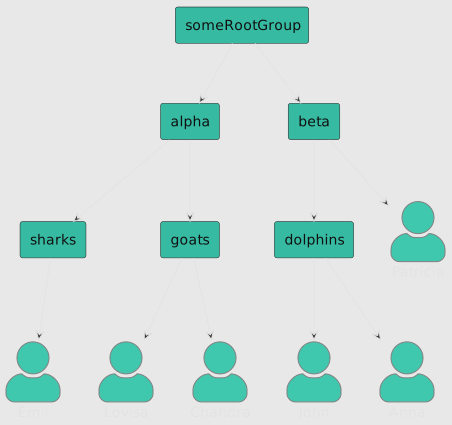
The configuration would look like this:
```yaml
microsoftGraphOrg:
providerId:
group:
path: /groups/{someRootGroup id}/transitiveMembers/microsoft.graph.group
user:
path: /groups/{someRootGroup id}/transitiveMembers/microsoft.graph.user
```
Using the transitive members endpoint will return all the users and groups that are members of the group `someRootGroup` on all levels.
### User photos
By default, the photos of users will be fetched and added to each user entity. For huge organizations this may be unfeasible, as it will take a _very_ long time, and can be disabled by setting `loadPhotos` to `false`:
```yaml
microsoftGraphOrg:
providerId:
user:
filter: ...
loadPhotos: false
```
If you are using `userGroupMember`, the configuration for `loadPhotos` should still be managed under `users:` while omitting `search` and `filters`.
```yaml
microsoftGraphOrg:
providerId:
user:
loadPhotos: false
userGroupMember:
filter: "displayName eq 'Backstage Users'"
search: '"description:One" AND ("displayName:Video" OR "displayName:Drive")'
```
## Customizing Transformation
Ingested entities can be customized by providing custom transformers.
These can be used to completely replace the built in logic, or used to tweak it by using the default transformers (`defaultGroupTransformer`, `defaultUserTransformer` and `defaultOrganizationTransformer`
Entities can also be excluded from backstage by returning `undefined`.
When using custom transformers, you may want to customize the data returned.
Several configuration options can be provided to tweak the Microsoft Graph query to get the data you need
```yaml
microsoftGraphOrg:
providerId:
user:
expand: manager
group:
expand: member
select: ['id', 'displayName', 'description']
```
### Using Provider Config Transformer
Dynamic configuration scaling allows the `msgraph` catalog plugin to adjust its settings at runtime without requiring a redeploy. This feature is useful for scenarios where configuration needs to be updated based on real-time events or changing conditions. For example, you can dynamically adjust synchronization schedules, filters, and search parameters to optimize performance and responsiveness.
:::note
Adjusting fields that are not used on each scheduled ingestion (e.g., `id`, `schedule`) will have no effect.
:::
:::warning
Dynamically changing configuration on the fly can introduce unintended consequences, such as system instability and configuration errors. Please review your transformer carefully to ensure that it is working as anticipated!
:::
#### Example Use Cases:
- **Filter Scaling**: Adjust filters like `userGroupMember` and `groupFilter` dynamically.
- **Search Parameter Adjustment**: Change search parameters such as `groupSearch` and `userSelect` on-the-fly.
### Using Custom Transformers
Transformers can be configured by extending `microsoftGraphOrgEntityProviderTransformExtensionPoint`. Here is an example:
```ts title="packages/backend/src/index.ts"
import { createBackendModule } from '@backstage/backend-plugin-api';
import { microsoftGraphOrgEntityProviderTransformExtensionPoint } from '@backstage/plugin-catalog-backend-module-msgraph/alpha';
import {
myUserTransformer,
myGroupTransformer,
myOrganizationTransformer,
myProviderConfigTransformer,
} from './transformers';
backend.add(
createBackendModule({
pluginId: 'catalog',
moduleId: 'microsoft-graph-extensions',
register(env) {
env.registerInit({
deps: {
/* highlight-add-start */
microsoftGraphTransformers:
microsoftGraphOrgEntityProviderTransformExtensionPoint,
/* highlight-add-end */
},
async init({ microsoftGraphTransformers }) {
/* highlight-add-start */
microsoftGraphTransformers.setUserTransformer(myUserTransformer);
microsoftGraphTransformers.setGroupTransformer(myGroupTransformer);
microsoftGraphTransformers.setOrganizationTransformer(
myOrganizationTransformer,
);
microsoftGraphTransformers.setProviderConfigTransformer(
myProviderConfigTransformer,
);
/* highlight-add-end */
},
});
},
}),
);
```
The `myUserTransformer`, `myGroupTransformer`, `myOrganizationTransformer`, and `myProviderConfigTransformer` transformer functions are from the examples in the section below.
### Transformer Examples
The following provides an example of each kind of transformer. We recommend creating a `transformers.ts` file in your `packages/backend/src` folder for these.
First, lets set up the basic structure of the file, with functions for each kind of transformer that simply passes through the default transformer unchanged.
```ts title="packages/backend/src/extensions/transformers.ts"
import * as MicrosoftGraph from '@microsoft/microsoft-graph-types';
import {
defaultGroupTransformer,
defaultUserTransformer,
defaultOrganizationTransformer,
microsoftGraphOrgEntityProviderTransformExtensionPoint,
MicrosoftGraphProviderConfig,
} from '@backstage/plugin-catalog-backend-module-msgraph';
import { GroupEntity, UserEntity } from '@backstage/catalog-model';
import { createBackendModule } from '@backstage/backend-plugin-api';
// The Group transformer transforms Groups that are ingested from MS Graph
export async function myGroupTransformer(
group: MicrosoftGraph.Group,
groupPhoto?: string,
): Promise {
const backstageGroup = await defaultGroupTransformer(group, groupPhoto);
return backstageGroup;
}
// The User transformer transforms Users that are ingested from MS Graph
export async function myUserTransformer(
graphUser: MicrosoftGraph.User,
userPhoto?: string,
): Promise {
const backstageUser = await defaultUserTransformer(graphUser, userPhoto);
return backstageUser;
}
// The Organization transformer transforms the root MS Graph Organization into a Group
export async function myOrganizationTransformer(
graphOrganization: MicrosoftGraph.Organization,
): Promise {
const backstageOrg = await defaultOrganizationTransformer(graphOrganization);
return backstageOrg;
}
// The Provider Config transformer enables modification of the plugin config
export async function myProviderConfigTransformer(
provider: MicrosoftGraphProviderConfig,
): Promise {
return provider;
}
// Wrapping these functions in a Module allows us to inject them into the Catalog plugin easily
export default createBackendModule({
pluginId: 'catalog',
moduleId: 'msgraph-org',
register(reg) {
reg.registerInit({
deps: {
microsoftGraphTransformers:
microsoftGraphOrgEntityProviderTransformExtensionPoint,
},
async init({ microsoftGraphTransformers }) {
// Set the transformers to our custom functions
microsoftGraphTransformers.setUserTransformer(myUserTransformer);
microsoftGraphTransformers.setGroupTransformer(myGroupTransformer);
microsoftGraphTransformers.setOrganizationTransformer(
myOrganizationTransformer,
);
microsoftGraphTransformers.setProviderConfigTransformer(
myProviderConfigTransformer,
);
},
});
},
});
```
Now lets customize each of the providers to suit our needs.
This Group Transformer example will have the default logic completely removed and replaced with our custom logic:
```ts
export async function myGroupTransformer(
group: MicrosoftGraph.Group,
groupPhoto?: string,
): Promise {
// highlight-remove-start
const backstageGroup = await defaultGroupTransformer(group, groupPhoto);
return backstageGroup;
// highlight-remove-end
// highlight-add-start
// All of our groups are prefixed with the organisational unit: 'Engineering - Team A'
// We want to drop the org unit from the group name and use it for the namespace instead
const groupNameArr = group.displayName.split(' - ');
const displayName = groupNameArr[1];
// Standardise name and namespace by replacing spaces with hyphens and converting to lowercase
const namespace = groupNameArr[0].replace(' ', '-').toLowerCase();
const groupName = groupNameArr[1].replace(' ', '-').toLowerCase();
return {
apiVersion: 'backstage.io/v1alpha1',
kind: 'Group',
metadata: {
name: groupName,
description: group.description,
annotations: {},
},
spec: {
type: 'team',
displayName: displayName,
email: group.mail,
children: [],
},
};
// highlight-add-end
}
```
This User Transformer example makes use of the built-in logic, but also modifies the username and sets a description
```ts
export async function myUserTransformer(
graphUser: MicrosoftGraph.User,
userPhoto?: string,
): Promise {
const backstageUser = await defaultUserTransformer(graphUser, userPhoto);
// highlight-add-start
// Make sure the default transformer returned an entity
if (backstageUser) {
// Update the description to make it obvious where this entity came from
backstageUser.metadata.description =
'Loaded from Microsoft Entra ID via MyCustomUserTransformer';
// The default transformer sets the username to the email address with invalid characters subbed out: 'user_domain.com'
// Set the username to the local part of the email address in lowercase without the domain
const newName = backstageUser.metadata.name.split('_')[0].toLowerCase();
backstageUser.metadata.name = newName;
return backstageUser;
}
return undefined;
// highlight-add-end
// highlight-remove-start
return backstageUser;
// highlight-remove-end
}
```
This Organization Transformer example removes the organization group completely by returning undefined
```ts
export async function myOrganizationTransformer(
graphOrganization: MicrosoftGraph.Organization,
): Promise {
// highlight-remove-start
const backstageOrg = await defaultOrganizationTransformer(graphOrganization);
return backstageOrg;
// highlight-remove-end
// highlight-add-start
// The org transformer creates a group to be used as the base of the relationship tree for groups
// We don't need this to be created, so return undefined instead of an entity
return undefined;
// highlight-add-end
}
```
This Config Transformer example expands the group filter to also include 'azure-group-a'
```ts
export async function myProviderConfigTransformer(
provider: MicrosoftGraphProviderConfig,
): Promise {
// highlight-add-start
// The filter in our config file relies on a property that has been intermittantly causing this important group to fail ingestion
// Ensure the group is always discovered by the filter
if (!provider.groupFilter?.includes('azure-group-a')) {
provider.groupFilter = `${provider.groupFilter} or displayName eq 'azure-group-a'`;
}
// highlight-add-end
return provider;
}
```
Now we just need to add our new module to the Backend.
```ts title="packages/backend/src/index.ts"
// Your file will have more than this in it
const backend = createBackend();
...
// highlight-add-start
backend.add(import('./extensions/transformers'));
// highlight-add-end
...
backend.start();
```
## Troubleshooting
### No data
First check your logs for the message `Reading msgraph users and groups`.
If you don't see this, check you've registered the provider, and that the schedule is valid
If you see a log entry `Read 0 msgraph users and 0 msgraph groups`, check your search and filter arguments.
If you see the start message (`Reading msgraph users and groups`) but no end message (`Read X msgraph users and Y msgraph groups`), then it is likely the job is taking a long time due to a large volume of data.
The default behavior is to import all users and groups, which is often more data than needed.
Try importing a smaller set of data (e.g. `filter: displayName eq 'John Smith'`).
### Authentication / Token Errors
See [Troubleshooting Azure Identity Authentication Issues](https://aka.ms/azsdk/js/identity/troubleshoot)
### Error while reading users from Microsoft Graph: Authorization_RequestDenied - Insufficient privileges to complete the operation
- Make sure you've granted all the required permissions to your application registration or managed identity
- Make sure the permissions are `Application` permissions rather than `Delegated`
- If your organization has configured "Admin consent" to be required, make sure this has been granted for your application permissions
- If your group queries are returning Microsoft Teams groups, you may need to grant addition permissions (e.g. `Team.ReadBasic.All`, `TeamMember.Read.All`)
- If you've added additional `select` or `expand` fields, those may need additional permissions granted